Process up to 200 images per job — pick your settings once, run them all.
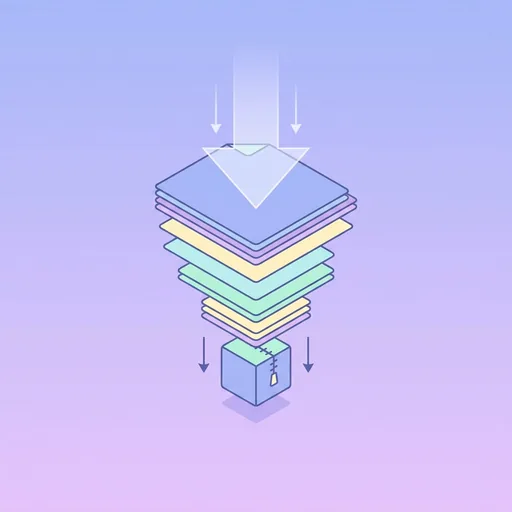
PNGs are great for graphics with sharp edges and transparency, but they're huge by default. This tool runs your PNG through pngquant + zopfli — the best-in-class lossless and near-lossless PNG optimisers — and typically returns a file 50–80% smaller. Transparency is preserved.
How PNG compression works
PNG uses lossless DEFLATE compression by default — every pixel is preserved exactly, but the result is bigger than necessary. Two techniques shrink it dramatically:
- Palette quantisation (pngquant): reduces the colour palette to 256 carefully-chosen colours. For most graphics (logos, icons, screenshots) this is visually lossless. Saves 50–70%.
- Re-encoding (zopfli): finds a more efficient DEFLATE encoding of the same pixel data. Truly lossless. Saves another 5–15%.
Combined: typical 65–80% file size reduction for graphics; 30–50% for photographic PNGs (which probably should be JPGs anyway — see Compress JPG).
When to compress PNG
- Logos and icons: usually safe to quantise to 64 or 128 colours.
- Screenshots: mostly flat colours, compress beautifully.
- Illustrations: palette quantisation works great if there aren't smooth gradients.
- Photos: consider converting to JPG or WebP instead — even compressed PNG is bigger than equivalent-quality JPG.
Quality settings
Default is 'visually lossless' (256 colours, zopfli optimised). Drop to 'small' for further savings on graphics with limited colour. 'Pristine' skips quantisation entirely and only runs zopfli — pure lossless, smaller savings, but every pixel is bit-exact.
Frequently asked questions
Will transparency be preserved?
Yes — alpha channel is fully preserved. Edge pixels with partial alpha stay intact.
What about animated PNG (APNG)?
Animated PNGs are processed frame-by-frame. For animated GIFs, see our GIF tools.
Maximum file size?
25 MB per file.
Can I batch process?
Yes — see <a href='/tools/compression/batch-optimize/'>Batch Optimize</a>.
Why is my PNG still big after compression?
Photographic PNGs don't compress well no matter what. Convert to JPG or WebP.
Does it work on PNG-8 already?
Yes — re-encodes with optimal settings. Modest gains on already-quantised files.
Will it strip metadata?
Yes — colour profile, EXIF, etc. are removed by default. Toggle off to keep them.
Are files private?
Yes — deleted within 24 hours, never used for training.
About PNG Compressor
PNG Compressor is a free online tool from Wallpapers.com that runs entirely in your browser — no install, no watermark, no email sign-up for the first try.
Shrink PNG files losslessly with pngquant + zopfli.
How to use PNG Compressor
- Drop your image into the upload area (single or batch — toggle Bulk at the top).
- Pick any settings the tool exposes (size, format, quality).
- Click Run. The result downloads automatically — no manual save step.
When to use it
Common use cases include:
prepping images for web upload, e-commerce listings, social media platforms with format constraints, and converting files from one device or app to another.
Free vs Premium
Every visitor gets a free trial run; signed-in free users get a higher daily quota. Subscribe to
Premium
for unlimited runs, bulk processing up to 200 images per job, priority queue, and ad-free browsing.
Related tools
Looking for something slightly different? Try the
JPG Compressor
,
WebP Compressor
or
Batch Image Optimizer
— or browse all
Compression tools.