Process up to 200 images per job — pick your settings once, run them all.
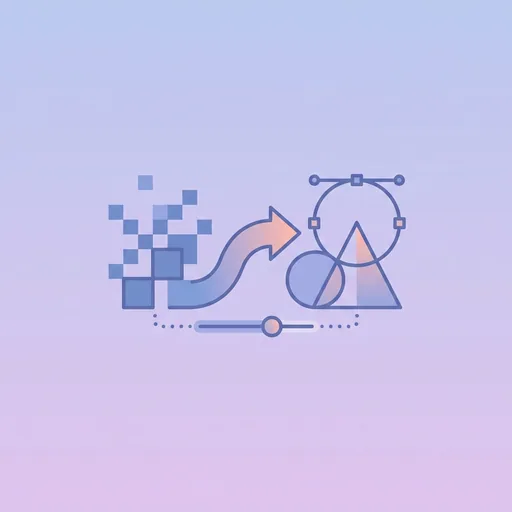
Effortlessly convert your raster images like JPEGs and PNGs into clean, scalable SVG vector graphics. Unlike pixel-based images that become blurry when enlarged, SVGs maintain perfect clarity at any size, making them ideal for logos, icons, and detailed illustrations. Our Image to SVG Trace tool uses an advanced algorithm to trace the contours of your picture, creating a high-fidelity vector version in seconds, ready for use in web design, print, or digital art projects.
How Our Image to SVG Trace Works
The process is straightforward and designed for speed. Simply upload your raster image (such as a JPG, PNG, or GIF). The tool immediately analyses the image and performs an initial trace. You can then use the adjustable threshold slider to fine-tune the level of detail in the output. A lower threshold will capture more intricate details, while a higher one will simplify the shapes, which is often ideal for creating a stylised or iconic look. Once you are satisfied with the preview, you can download your new SVG file instantly.
When to Use This Tool
This converter is invaluable in a wide range of scenarios. Here are a few common uses:
- Logo Conversion: Transform a pixelated logo into a crisp vector format that looks sharp on everything from a business card to a billboard.
- Digital Illustrations: Convert scanned drawings or simple pictures into a scalable vector format, perfect for digital art or animation.
- Web Icons and UI Elements: Create lightweight, resolution-independent icons for websites and applications that look perfect on any screen, including high-resolution Retina displays.
- Crafting and Cutting: Prepare designs for use with vinyl cutters and other CNC machines, which require vector paths to operate.
For more advanced vector manipulation, you might explore our other SVG vector tools, like the SVG Minifier for optimising file size.
Tips for the Best Results
To achieve the highest quality trace, keep these tips in mind:
- Start with a Clean Image: The tool works best with images that have clear, well-defined edges and high contrast. Simple logos, black-and-white icons, or line art will produce the cleanest results.
- Simplify Before Uploading: If your image is overly complex or 'noisy', consider simplifying it in an image editor first. Removing the background or converting it to black and white can significantly improve the trace quality.
- Experiment with the Threshold: There is no single 'correct' setting. Slide the threshold control back and forth to see how it affects the detail and smoothness of the vector paths. Find the balance that best suits your specific image and desired outcome.
- Understand the Limits: Automated tracing is not ideal for photorealistic images. It excels at converting graphics with distinct shapes and colours. For more complex conversions, you can find a variety of other options in our full tool index.
Frequently asked questions
What is the best image format to upload for SVG tracing?
For the cleanest trace, use a high-resolution PNG or BMP with solid colours and sharp edges. JPEGs can work, but compression artefacts may affect the quality of the final vector paths.
Why does my SVG look blocky or lose detail?
This is usually related to the threshold setting. Try lowering the threshold to capture more detail, or start with a higher-resolution source image with better contrast.
Can I convert a photograph to an SVG with this tool?
While you can, auto-tracing is not designed for photorealistic images. It works best for logos, icons, and illustrations with distinct shapes and limited colours.
What is an SVG file used for?
SVG (Scalable Vector Graphic) is an XML-based vector image format used for graphics that need to be scaled to different sizes without losing quality, such as logos and icons.
Does this tool support colour tracing?
Our current tool focuses on creating a monochrome (black and white) trace based on outlines and contrast. This is ideal for creating clean paths for logos, icons, and cut files.
Is the converted SVG file ready for a cutting machine like a Cricut?
Yes, the SVG output contains clean vector paths that are compatible with most cutting machines. You may need to do minor clean-up in your machine's software depending on the complexity.
How can I edit the SVG file after downloading it?
You can edit the SVG file using any vector graphics editor, such as Adobe Illustrator, Inkscape (which is free), or Figma. These programs allow you to modify paths and change colours.
About Image to SVG (Multi-format)
Image to SVG (Multi-format) is a free online tool from Wallpapers.com that runs entirely in your browser — no install, no watermark, no email sign-up for the first try.
Auto-trace any raster image to SVG with adjustable threshold.
How to use Image to SVG (Multi-format)
- Drop your image into the upload area (single or batch — toggle Bulk at the top).
- Pick any settings the tool exposes (size, format, quality).
- Click Run. The result downloads automatically — no manual save step.
When to use it
Common use cases include:
prepping images for web upload, e-commerce listings, social media platforms with format constraints, and converting files from one device or app to another.
Free vs Premium
Every visitor gets a free trial run; signed-in free users get a higher daily quota. Subscribe to
Premium
for unlimited runs, bulk processing up to 200 images per job, priority queue, and ad-free browsing.
Related tools
Looking for something slightly different? Try the
SVG to PNG Converter
,
SVG to JPG Converter
or
SVG to WebP Converter
— or browse all
SVG / Vector tools.